

♠️ 🏎️ 💎 ✊
INFAXIA Metaverse · Games Hub
The Complete INFAXIA Games Guide
Everything you need to play, host, and master all four INFAXIA games — Poker, Car Racing, Treasure Hunt, and Rock-Paper-Scissors — in one place. Pick a game to begin. 🎮
🎮 Choose Your Game
Tap a game to jump to its section, then tap any guide header to expand the full step-by-step instructions.
♠️
INFAXIA Games
Poker
Texas Hold’em tables, tournaments, rooms & chips in IX Poker.
01 ♠️ How to Play Poker
Ready to make your move? Learn how to place bets like a pro with
just a few simple taps. Whether you’re playing cautiously or going
all in — it starts here! 🃏♠️
1
After entering a room, the game starts automatically once
all players have joined, and the cards are dealt.
2
Pre-Flop (First Betting Round): Players
post blinds, and each player receives their hole cards. Make
your decision to bet, fold, or call.
3
Flop (Second Betting Round): The dealer
reveals the first three community cards. Decide if you want
to continue betting based on your hand.
4
Turn (Third Betting Round): The fourth community
card is dealt. Make your next betting decision.
5
River (Final Betting Round): The fifth and
final community card is revealed. Place your final bet, fold,
or call.
💡 Tip: Use the slider to adjust
your bet — or go ALL-IN if you’re feeling bold!
6
Showdown: Remaining players reveal their
hands. The best five-card hand wins the pot. The winner gets
the pot, and the next round begins automatically.
💬 Interactive Features Inside the Poker Room
In-Game Chat: Communicate with other players through
the chat box!
1
Simply click the chat icon to send messages.
2
Use emojis to express your excitement, surprise,
or even a friendly bluff.
Auto Muck: When enabled, this feature automatically
hides your cards at the end of a round if you lose — protecting your
strategy from being revealed.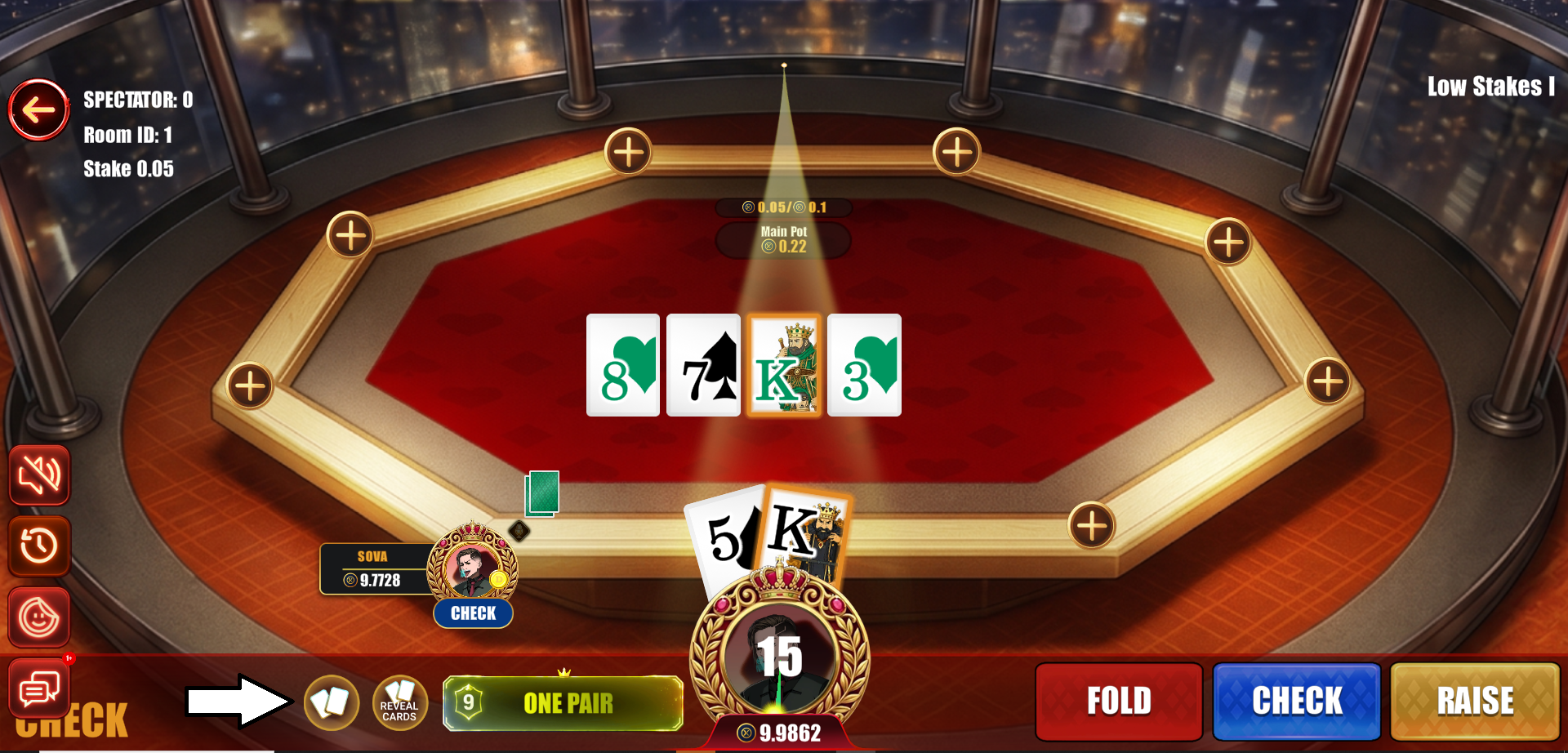
Reveal Cards: You can also choose to reveal your
cards manually if you want to bluff or show off your winning hand
— when you do, other players will see your hole cards.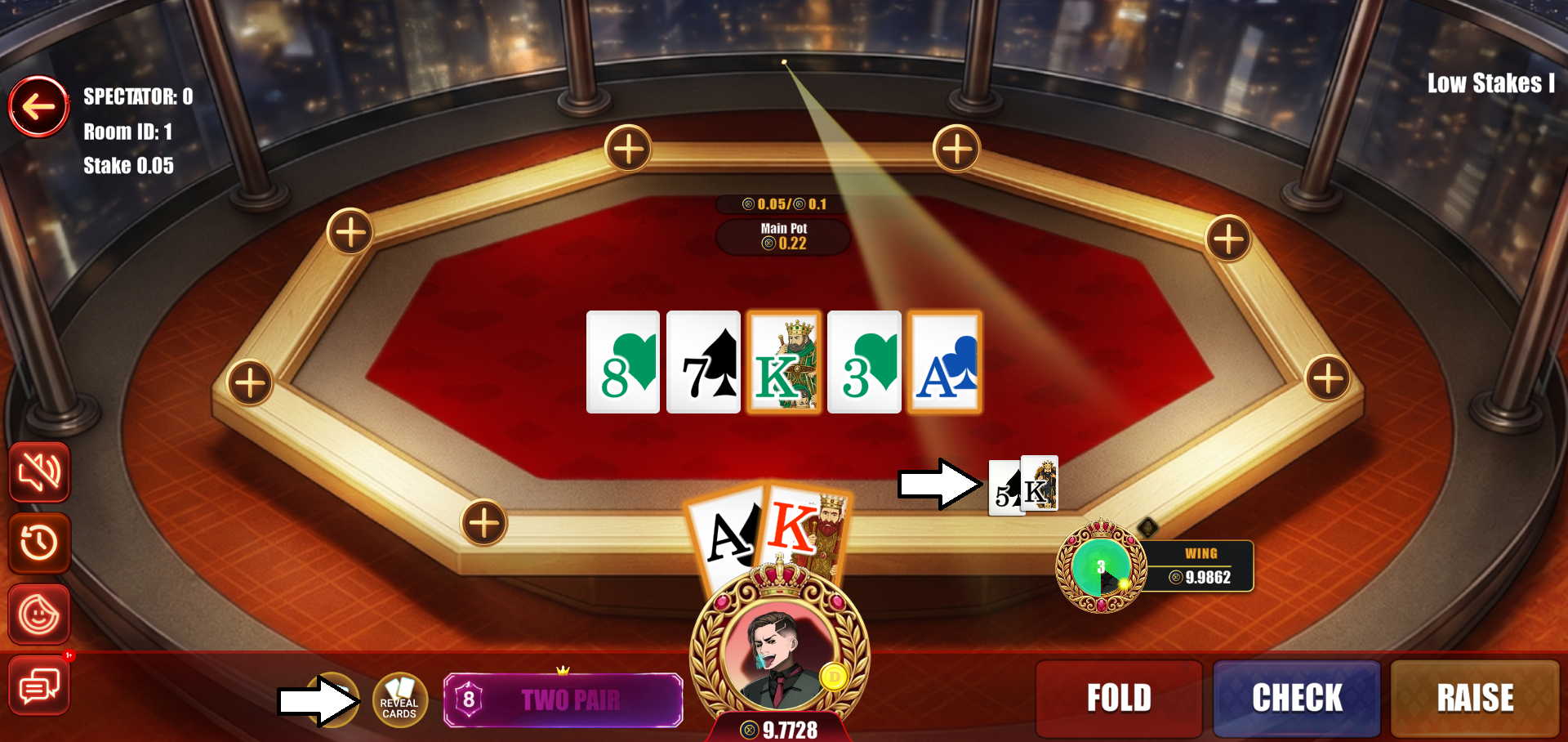
♠️ Every hand is a new opportunity — bet smart, play bold, and enjoy
the thrill of the game. See you at the tables in INFAXIA Poker!
02 💰 Poker: Single Play Guide
Single Play lets you practice INFAXIA Poker against AI opponents
in a relaxed, no-pressure environment. It’s the best way to learn
the basics, test new strategies, and build confidence before joining
real multiplayer matches hosted by INFAXIA inside
the INFAXIA Metaverse.
💰 Steps to Start Single Play
1
Log in to your INFAXIA account.
2
Click the three dots (⋯) menu, then select Poker.
3
Read and agree to the Terms of Service.
4
Wait for the Poker page to load.
5
You’ll be redirected to your Poker main page.
6
Click Single Play.
7
Adjust your Single Play settings as desired.
8
Click Play to begin your match!
9
You will enter a poker game based on your preferred settings.
During the game, you can Fold, Call, Raise,
or Go All-in. Use this mode to practice
strategies, observe AI behavior, and refine your decision-making.
💡 Tip: Take your time exploring all options — Single
Play is designed for learning, so experiment freely without any risk.
03 🃏 How to Find a Room in Poker
Got an invite or want to join a custom game? Use the
Find Room feature to easily locate private or personalized
poker rooms — whether you’re joining friends or hosting your own!
🃏👥
1
On the Poker Game page, click the [FIND ROOM]
button.
2
Choose from the available rooms and click
[Join Room].
3
The details of the Poker room you selected will be displayed.
Click [Play] to enter and start playing.
You’re all set! Join the room, take your seat, and enjoy the game
with friends or chosen players. 🎉♠️
04 🏆 How to Create your own Poker Tournament
Ready to host your own game? Take the lead and bring the competition
to life! Creating a Poker Tournament in INFAXIA is quick and easy.
Follow this guide to set up your tournament, invite friends, and
start playing like a pro.
1
Log in to your INFAXIA account, then click the three dots
(⋮) menu, then click the Poker Icon.
2
Click “Yes” to agree to the Terms of Service.
3
Wait for the page to fully load.
4
You will be redirected to your Poker Dashboard. Click on
the Tournament tab.
5
Click “Create Tournament.”
6
Click the banner frame and upload a Poker banner for your
tournament.
7
Enter your Tournament Name.
8
Set the Date and Time of the tournament.
9
(Optional) Set a Password to make
your tournament private.
10
(Optional) Add a Hashtag for easy
identification or branding.
11
Set the Buy-In Amount.
💡 Tip: The entry fee each player must pay to
join. The total of all buy-ins usually contributes to the prize
pool.
12
Enter the Prize.
💡 Tip: Define how much the winner or top players
receive. The prize can be fixed or based on the total buy-in
collected.
13
Set the Maximum Number of Players.
14
Set the Blind Level.
💡 Tip: Blinds are forced bets that start each
round. The blind level sets how fast blinds increase — faster
levels mean quicker gameplay.
15
Set the Starting Stack.
💡 Tip: The chips each player begins with. A
higher stack allows more strategic play; a lower stack makes
the game faster-paced.
16
To allow spectators, turn on Allow Spectators.
To let them chat, enable Spectator Chat.
17
Click “Create.”
18
A confirmation pop-up appears — click “Continue”.
19
Your created tournament will appear on the
Tournament List in your Poker Dashboard.
🎉 You’ve successfully created your own Poker Tournament! Invite
your friends, compete, and enjoy the INFAXIA Poker experience.
05 🎉 How to Create a Poker Room
Want a private game with friends or a customized table setup? Use
the Create Room feature to host your own poker match
with full control over the rules and vibe! 🎉🃏
1
On the Poker Game page, click the [CREATE ROOM]
button to start setting up your game.
2
The Create Room page appears. Fill out the details, then
click [Ok]. You’ll be automatically entered
into your newly created poker room.
3
Send invites to your friends and you’re now ready to play!
Your room is now ready! Share the invite code and let the cards fall
where they may. Good luck, host! ♠️👑
06 👀 How to Spectate in Poker
Here’s how to spectate a poker match in just a few simple steps!
💰♠️
1
On the poker menu, click “Find Room”.
2
Click the room that you want to spectate.
3
Review the room details and click “View”
to spectate.
4
You will be directed to the Poker match room. Enjoy watching
the match!
07 🎟️ How to Register and Join a Poker Tournament
The cards are on the table — and it’s your turn to play! Follow this
quick guide to
register and join your first INFAXIA Poker Tournament
today.
1
Log in to your INFAXIA account, then click the three dots
(⋮) menu.
2
Select the Poker icon.
3
Click “Yes” to agree to the Terms of Service.
4
Wait for the page to fully load.
5
You will be redirected to your Poker Dashboard. Click on
the Tournaments tab.
6
Choose the tournament you want, then click “Join.”
7
Review the tournament details, then click
“Register” to confirm.
8
You’ll receive a notification that you have successfully
registered. Click “Ok” to proceed.
9
Sit back and relax! A countdown timer appears as you wait
for the event to begin.
🎉 You’re all set! Get ready to compete, showcase your skills, and
climb the INFAXIA leaderboard!
08 💬 Poker Room Communication Guide
Stay connected and make every match more interactive inside the poker
room. Use chat, emotes, and voice messages to communicate
with other players in real time.
How to Chat
1
Click the chat icon.
2
A chat box appears — type your message.
You can also send emoticons by clicking the
emoticons icon.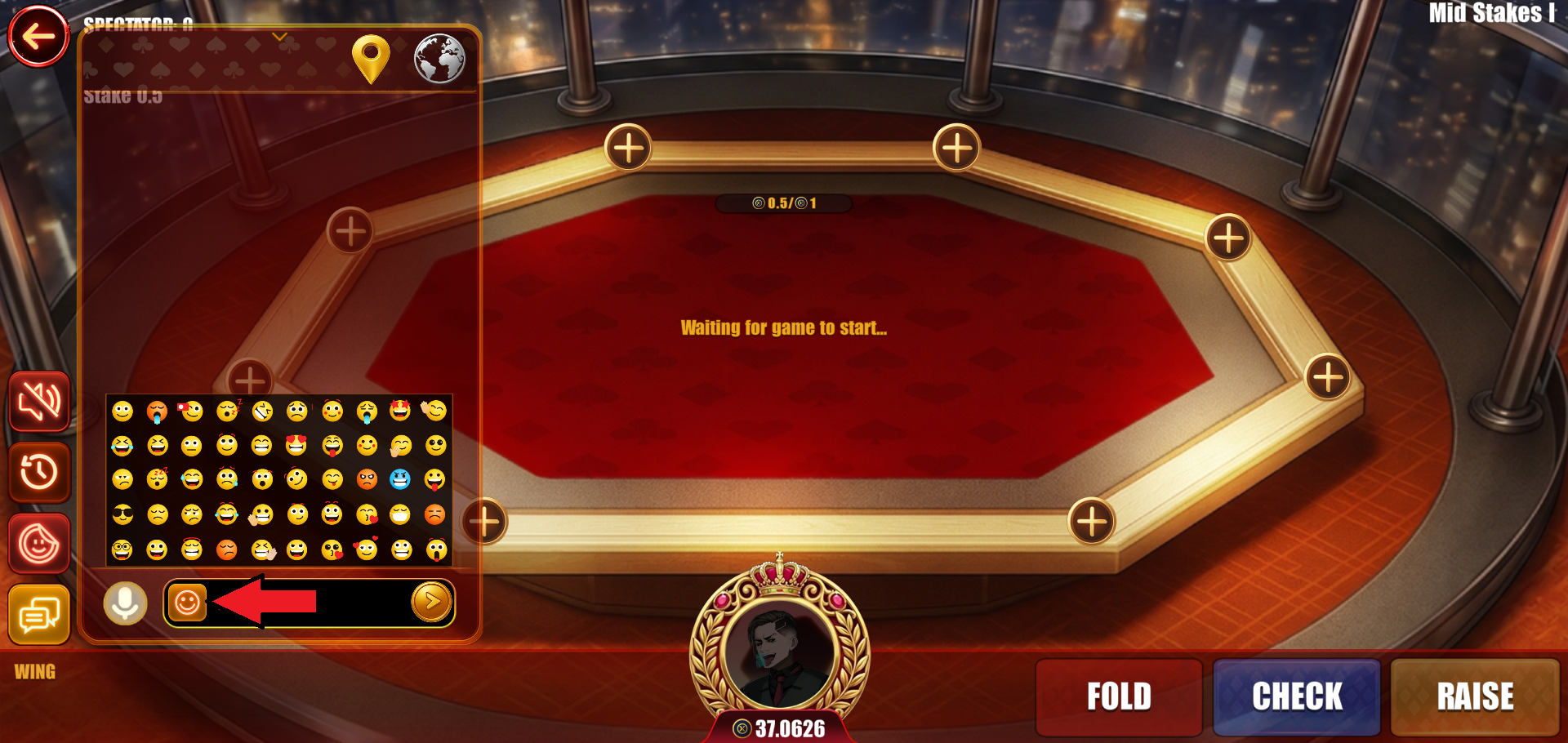
3
Click the send icon to post your message.
How to Send a Voice Message
1
Open the chatbox and long press the mic icon.
2
Record your voice message. Release and click send — it will
be posted on the chatbox.
How to Use Emoticons
1
Click the emoticon icon.
2
Select an emoticon.
3
Your selected emoticon appears on your profile in the room.
Start chatting, send emotes, or drop a voice message to make your
poker room experience more interactive and fun.
09 📈 How to Check my Poker Game History
Want to review your past plays? Access your
Poker Game History to track performance, learn from
previous hands, and refine your strategy! 🃏📈
1
Click the Game History Icon — located at
the upper right corner of your screen while inside the poker
room.
2
View Your Game Records — your Poker Game
History instantly appears, showing your previous hands, bets,
and results.
Your game history is now at your fingertips. Analyze your moves,
improve your gameplay, and come back stronger each round! ♠️💡
10 🤖 Download & Install Poker on Android
Ready to experience INFAXIA Poker on the go? This guide walks you
through downloading and installing the INFAXIA Poker game on your
Android device — safely and easily. Follow the steps below to start
playing anytime, anywhere.
1
Go to
https://go.infaxia.io/
and tap “Play on Website.”
2
Select “Poker.”
3
When prompted, tap “Download Anyway.”
4
Wait for the download to complete.
5
Once the download finishes, tap “Open.”
6
Tap “Install.”
7
Wait for the installation to complete.
8
After the app is installed, tap “Open.”
9
You’ll be redirected to the login page — click
“Continue”.
10
Enter your email address and click “Continue.”
11
The verification page will appear.
12
Check your email inbox and copy the verification code.
13
Paste the code into the verification field.
14
You’ll be redirected to your INFAXIA Poker Dashboard — ready
to play!
Installation complete! Dive into the INFAXIA Poker world and experience
the thrill anytime, anywhere.
11 💰 Deposit, Withdraw & Transfer Poker Chips
Ready to Play? Top up your poker chips and jump into the action.
Here’s how to deposit, withdraw, and transfer chips in a few simple
steps! 💰♠️
How to Deposit Chips
1
On your poker page, click the Wallet icon
below your profile image.
2
A deposit/withdraw page appears. Enter the amount and click
[Deposit].
3
A success notification appears — click [Ok]
to close.
How to Withdraw Chips
1
Click the IX Glow Wallet icon below your profile
image.
2
Click the Withdraw tab. Enter the amount,
then click [Withdraw].
3
A success notification appears — click [Ok]
to close.
How to Transfer Chips
1
Click the Transfer tab. Enter the amount,
enter the recipient’s email, then click “Transfer”.
2
A confirmation pops up. Review the details, then click
“Ok”.
3
A success notification appears — click [Ok]
to close.
Always double-check your balance and transaction details before confirming
to ensure a smooth experience.
12 ⚡ Quick Play: Join a Poker Room Instantly
Use Quick Play to instantly join an available poker
room without creating one. Follow the steps below to enter a room
and start playing right away.
1
On your poker dashboard, click Quick Play.
2
You’ll be automatically placed into a room based on your
chips balance.
3
Invite friends by clicking the + icon on
the empty seats.
Click Quick Play now and jump straight into a poker room to start
playing.
13 🎭 Auto Muck & Reveal Cards Feature
Take control of what other players see at the end of each round.
Auto Muck and Reveal Cards let
you decide whether to hide or show your cards automatically — managing
your table strategy and the element of bluff.
How to Use the Reveal Cards Feature
1
While seated at a poker table, click the
Reveal Cards icon.
2
Your hole cards immediately become visible to the other players.
How to Enable Auto Muck
Want to fold silently without revealing your hand? Turn on
Auto Muck for a smoother, more discreet experience.
1
Go to your Poker Dashboard and click [Settings]
at the bottom right.
2
Toggle the “Auto Muck” option to
ON.
You can also enable Auto Muck directly by clicking the
Auto Muck icon inside the poker table.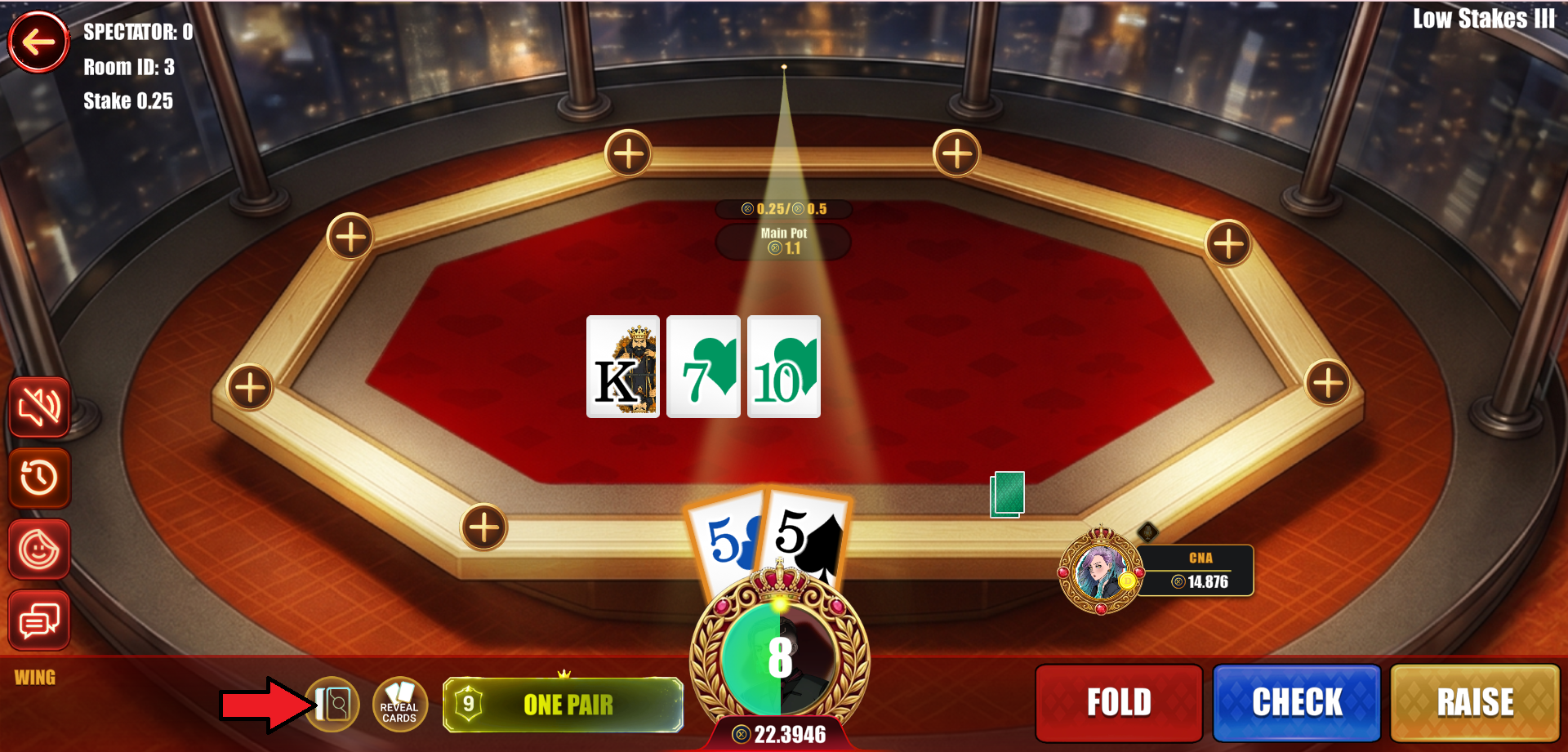
3
Even at showdown, your cards will not be revealed
when Auto Muck is enabled.
🎯 Use this feature wisely to control your table image and influence
gameplay decisions.
🏎️
INFAXIA Games
Car Racing
Time Attack races, maps & leaderboards across the Metaverse.
01 🏎️ Car Racing Guide
🚗 INFAXIA Car Racing Guide. Learn how to enter
the race, choose your mode, select a map, and start driving inside
the INFAXIA Metaverse.
🚀 How to Start a Car Race
1
Log in to INFAXIA at
https://go.infaxia.io/
and enter the Metaverse.
2
Look for a car, go beside it, then click “Play”.

3
Select your preferred game type.

- Free Play – You do not need to spend IXP.
- Paid Play – You need to spend IXP to play.
4
Select your preferred game mode. Currently,
Time Attack is the only available mode.

5
Select your preferred map.

6
Select your car, then click Play to start
racing.
🏆 How to Check the Leaderboard
1
Go to the Car Race menu.

2
Click “Clash Zone” located at the upper
right. From there you’ll see the rankings — select different
modes and maps to view the leaderboard for each.

🏁 Tips
- 🎯 Start with Free Play — practice before using IXP so you can get familiar with the controls.
- ⏱️ Focus on consistency — smooth, steady driving usually beats aggressive driving for lap times.
❓ FAQ
Free Play vs Paid Play?
Free Play does not require IXP. Paid Play requires IXP to join.
Available Mode?
Time Attack is currently the only available game mode.
What is Time Attack?
A game mode where the goal is to complete a race as fast as possible
and achieve the best lap time.
⏱️ What happens in Time Attack?
You race alone (no direct opponents); performance is based on
speed and precision; your best lap time is recorded and compared
with other players on the leaderboard.
💎
INFAXIA Games
Treasure Hunt
Unlock hints, follow the trail, and claim reward-filled chests.
01 🗺️ Treasure Hunt: Step-by-Step User Guide
INFAXIA Treasure Hunt Quest. Step inside the INFAXIA
Metaverse — the ultimate play-to-earn adventure where treasures aren’t
just hidden, they’re waiting for YOU to discover! 💎 Unlock hints,
follow the trail, and uncover mystical treasure chests filled with
rewards. The deeper you go, the greater the rewards.
▶
▶ Watch the Treasure Hunt Video Tutorial
1
Enter the Quest — Tap the
TREASURE CHEST ICON at the bottom-left corner
of your screen to start your adventure.
2
Explore the Hint Shop — The Hint Shop appears.
Browse your hints and pick the ones that guide you toward
hidden treasures.
3
Unlock the First Hint – The Map — Reveal
your first clue by clicking the MAP ICON,
then hit GET. The minimap appears and the
treasure starts blinking, guiding your next move!
4
Unlock the Second Hint – The Drone — Activate
the Drone from the Treasure Chest Icon.
A drone appears and navigates toward the treasure’s location,
leading you directly to it.
5
Unlock the Third Hint – Fireworks — In the
Hint Shop, select the Fireworks Hint Icon.
A fireworks display appears in the sky marking the treasure’s
exact location.
💡 Tip: You can purchase as many hints as you
like to help find the treasure chests faster.
6
Claim Your Treasure — Find the treasure
chest, unlock it by clicking the letter [U],
and claim your rewards!
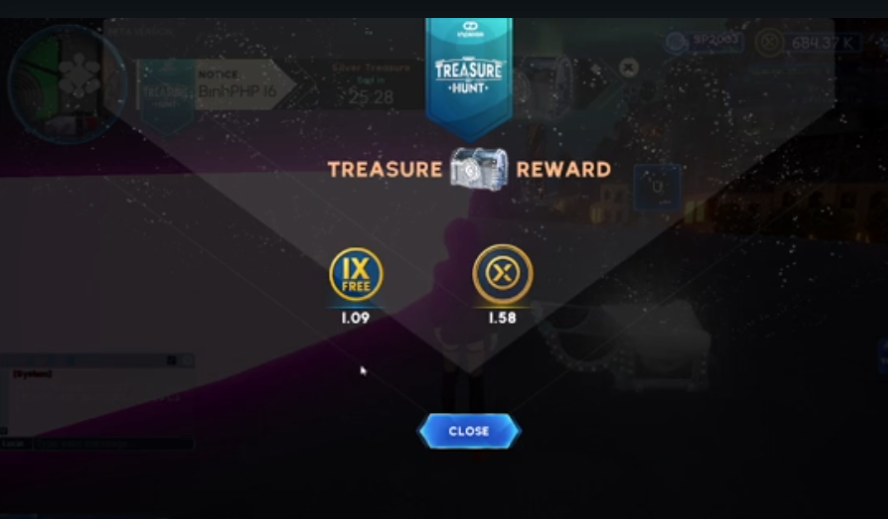
Every chest is packed with exclusive prizes, rare items, and powerful
rewards — from collectible NFTs to valuable IXP and IX free points.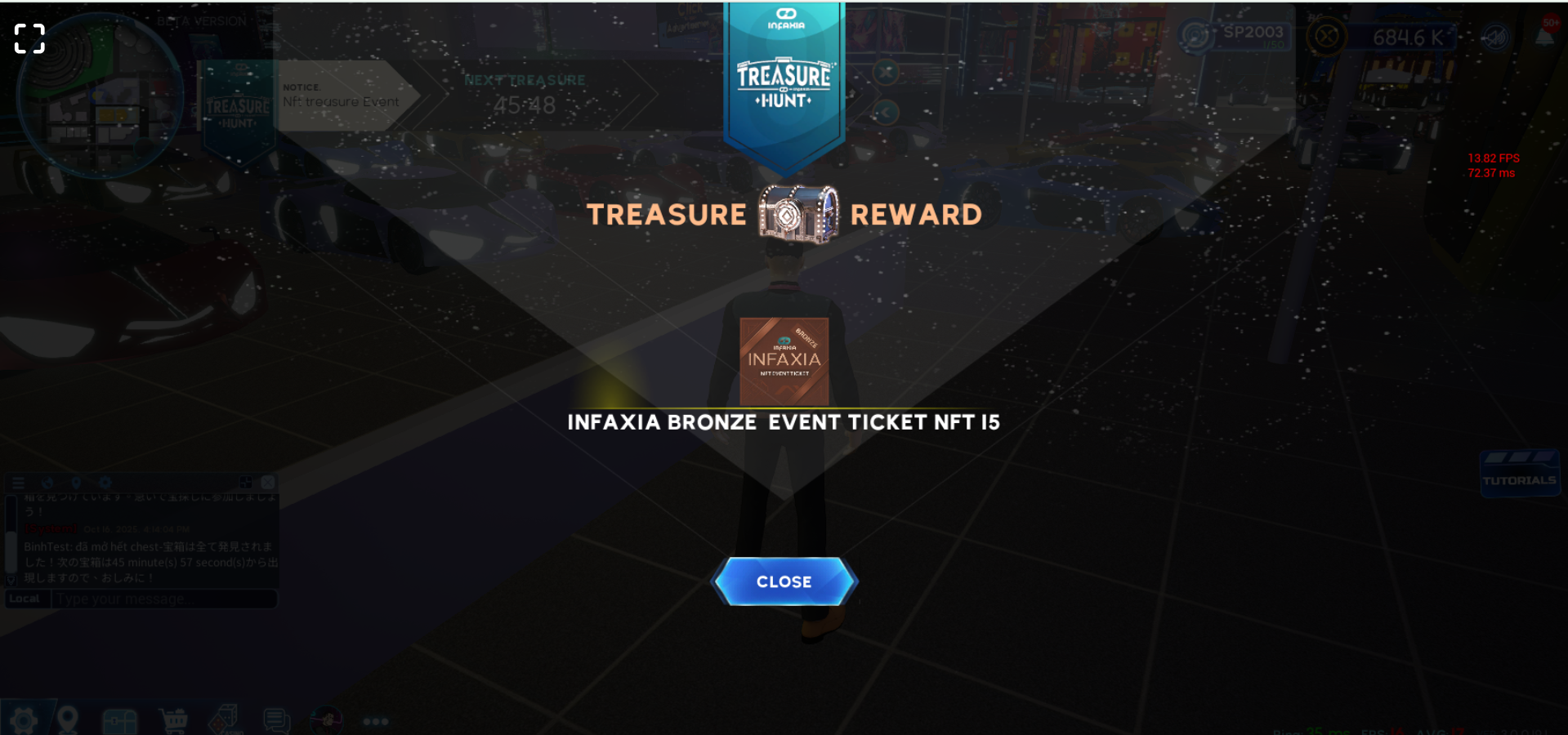
The system notifies users when a chest is opened via the
World Chat feature and common notifications.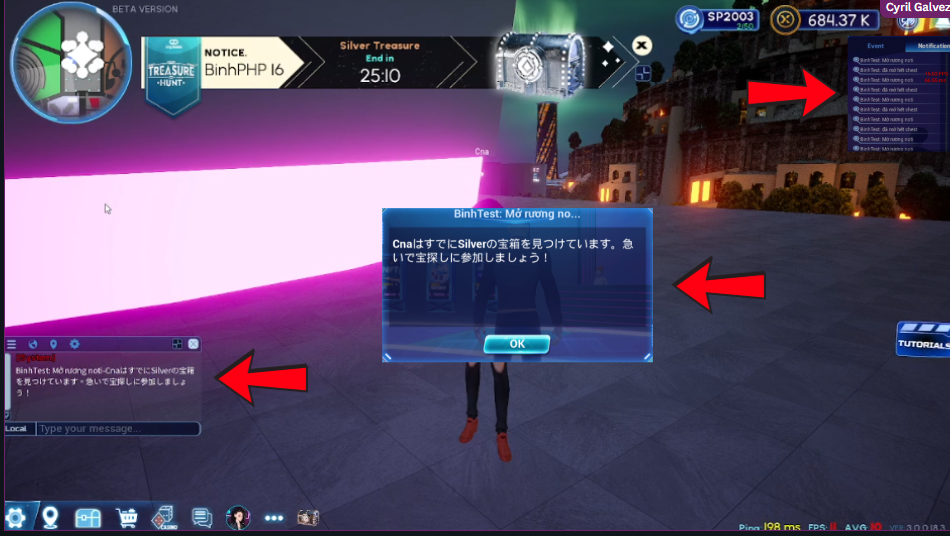
All rewards automatically reflect in your account.
NFT rewards appear in your Marketplace inventory,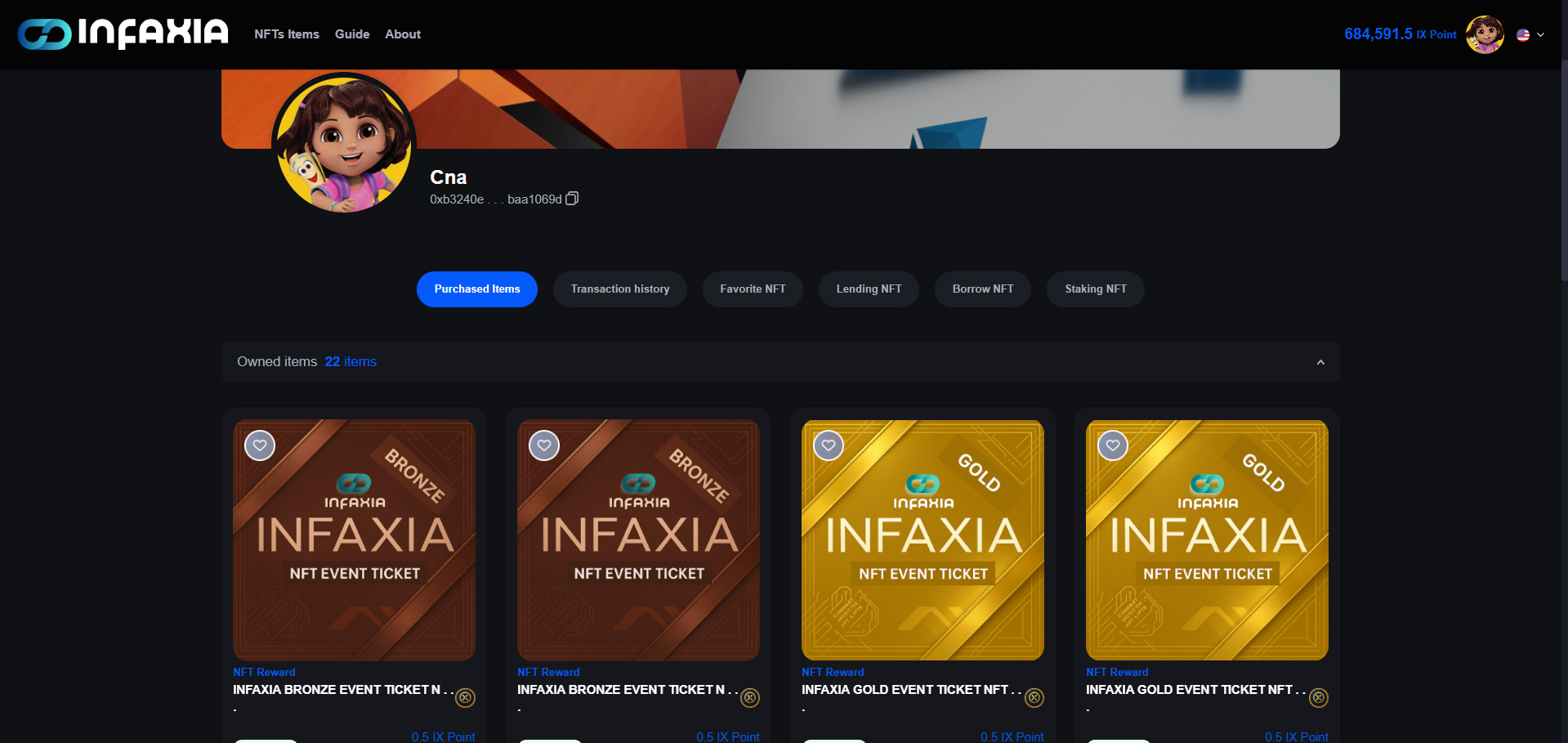
while IXP and IX free points are automatically reflected
in your IX Glow Wallet.
🏆 You’ve followed the clues, unlocked the hints, and discovered
the hidden treasure! Enjoy your exclusive rewards — the INFAXIA Metaverse
always has more adventures waiting.
02 🔍 How to Purchase Hints in Treasure Hunt
Hints in INFAXIA Treasure Hunt are in-game tools used to help players
locate hidden chests more efficiently during active events. They
provide guidance or directional assistance, letting you narrow down
search areas and improve your chances of finding chests within the
event duration.
Types of Hints
Map — Displays a blinking indicator on the approximate
location of the chest.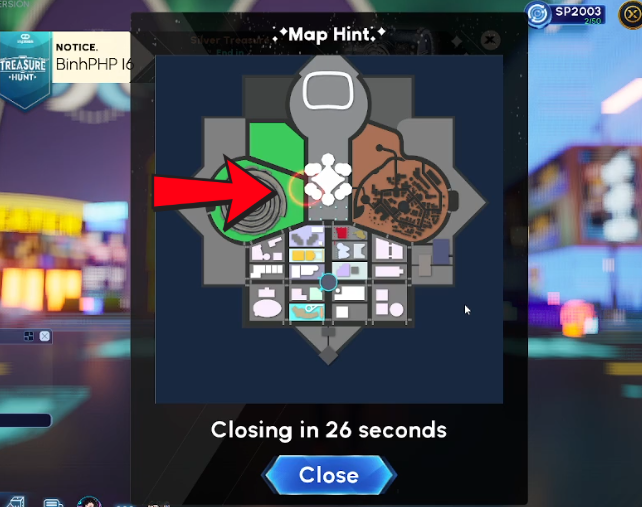
Drone — Automatically guides you directly toward
the exact chest location.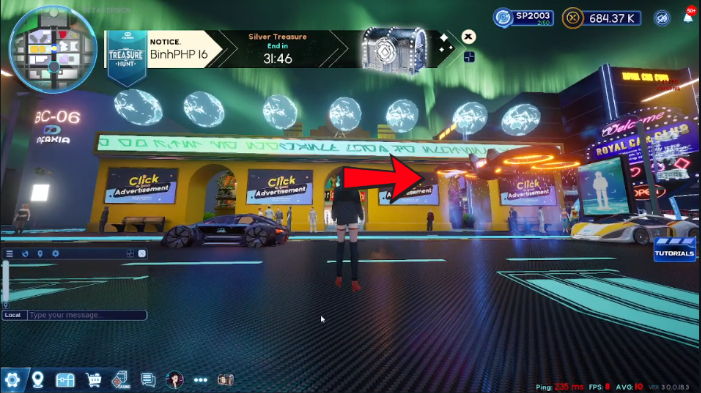
Fireworks — Shows a fireworks display above the
general area where the chest is located.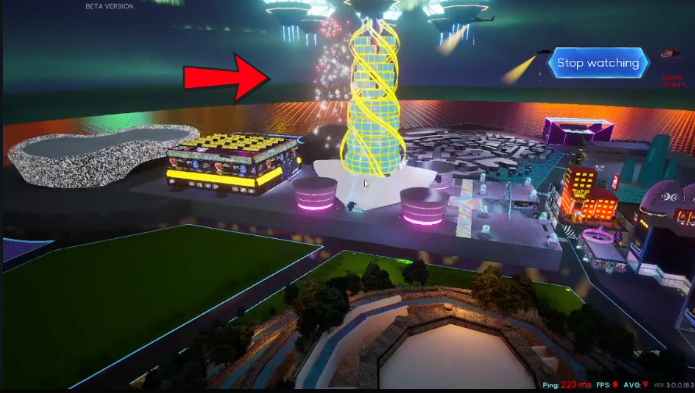
How to Purchase Hints
1
Check the live banner inside the metaverse for the Treasure
Hunt event schedule.
2
To find chests faster, click the chest icon
located next to your avatar profile.
3
Select the hint package you want to purchase.
4
Click “Get” to confirm. The hint cost is
deducted from your points balance, and the hint activates
automatically to guide you to the chest.
You can purchase as many hints as you need. Note that all hint purchases
are consumed immediately and are non-reusable and non-refundable.
✊
INFAXIA Games
RPS
Rock-Paper-Scissors 1V1 battles, betting & tournament arena.
01 ✊ How to Play RPS 1V1 Battle
Ready to outsmart your friends in a game of wits and reflexes? This
guide walks you through playing Rock, Paper, Scissors with friends
— from sending challenges to claiming victory! Whether you’re playing
for fun or betting some coins, here’s how to dive in.
▶
▶ Watch the RPS 1V1 Video Tutorial
1
Click on your friend’s avatar, then click
[PLAY RPS] 🥊
2
Choose whether you want a bet match or just a fun match.
💡 Tip: Want to raise the stakes? Toggle the
Bet option, choose the currency, type your desired
bet amount, and click [CONFIRM] to lock it in.
3
Accept the Terms of Service. Your challenge is sent — now
wait for your friend to accept the game invite!
4
Choose your hand gesture — rock, paper, or scissors — or
click [Random], then click
[Confirm].
5
The game begins! Outsmart your opponent and dominate the
match — may the best strategist win! 🧠✨
🧠 Rock. ✋ Paper. ✌️ Scissors. One decision can change everything
— are you ready to play?
02 💵 RPS Web Version: How to Bet
Follow these steps to place a wager before your RPS match inside
the metaverse.
1
Find an Opponent — Log in to the metaverse
and look for a nearby player. Click their avatar to challenge
them. You can invite friends or any online player as long
as they are close to you.
2
Start the RPS Challenge — Select
Play RPS from the interaction menu.
3
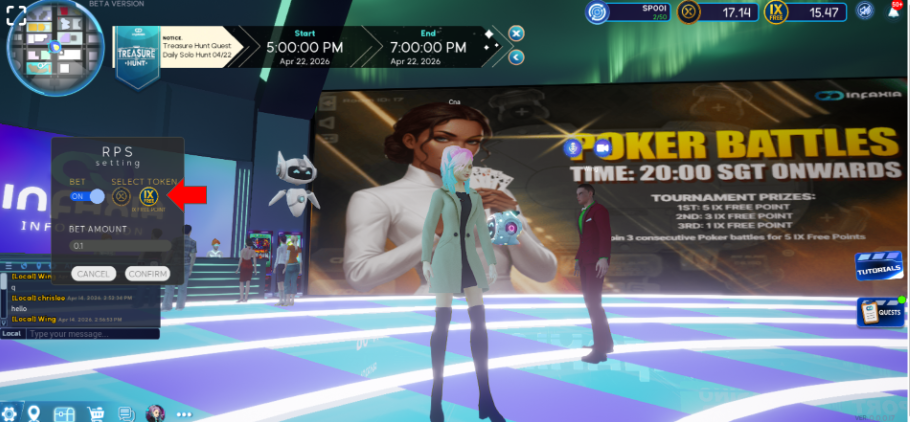
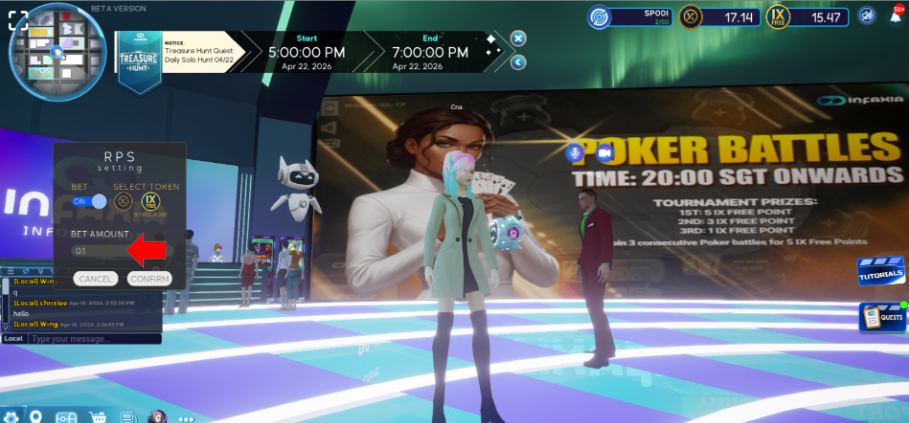
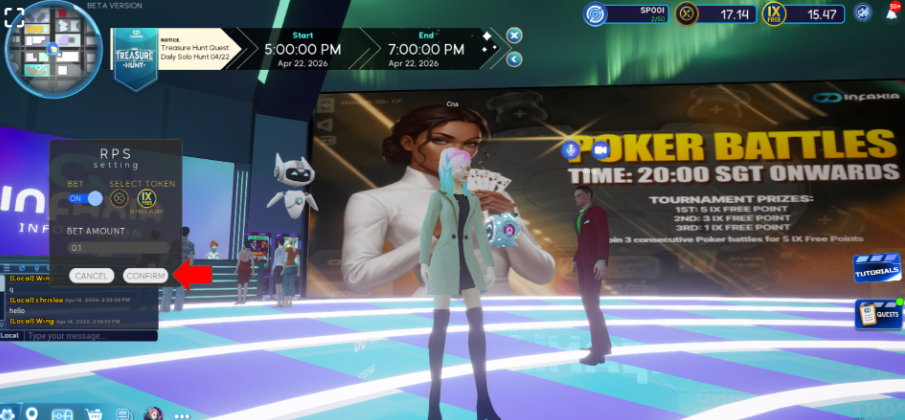
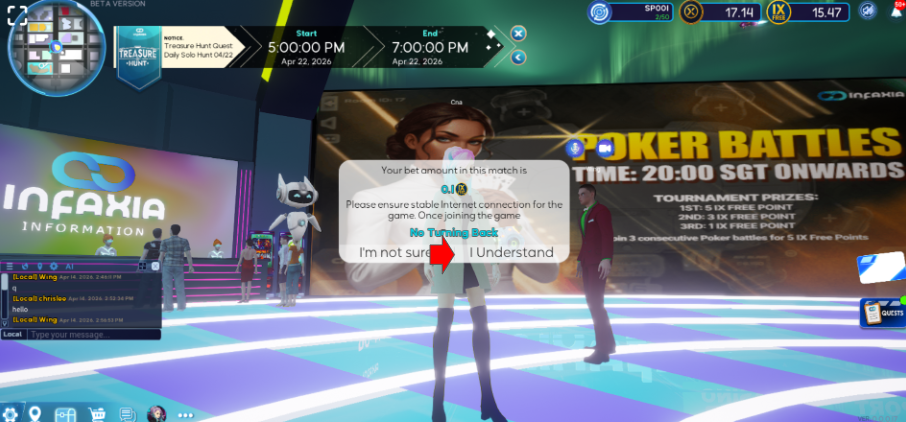
Set Your Bet — The bet panel appears. To
play without a bet, simply click Confirm.
To place a wager: toggle the Bet option, choose
your currency (IX Points or IX Free Points), enter your bet amount,
click Confirm, then tick I Understand.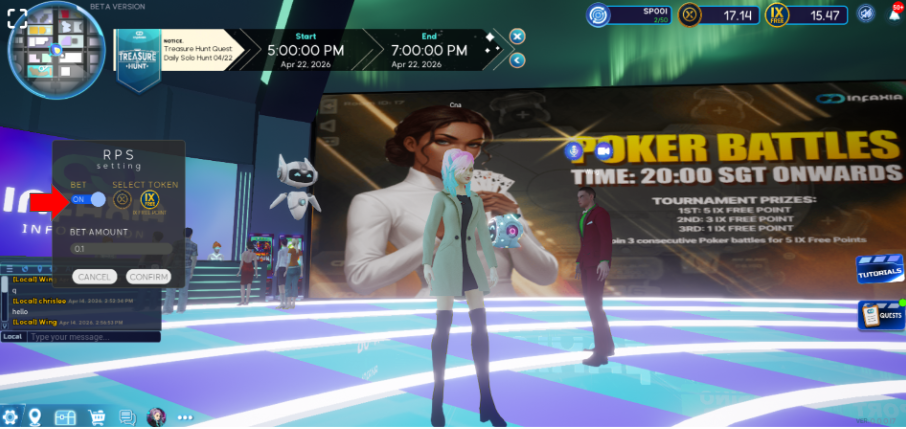
4
Wait for Acceptance — Once the other player
accepts, the match begins. Make your move!
Ready to test your luck? Jump into the metaverse, challenge a player,
and place your RPS bet now!
03 🎚️ RPS: Free Bet vs. Bet with Wager
Not sure which mode to play? Here’s the difference between a
Free Bet and a Bet with Wager in
INFAXIA RPS.
🔹 Free Bet (Casual Play)
- Play without using IXP (IX Points) / IX Free Points.
- Great for practice and fun matches.
- No risk, no reward — just pure entertainment!
🔹 Bet with Wager (Competitive Play)
- Place a bet using IXP (IX Points) / IX Free Points.
- Higher stakes, bigger excitement!
- Win and claim your opponent’s wager.
- A thrilling way to test your skills and earn rewards.
💡 How to Choose: Simply toggle the
Bet Option before confirming your match.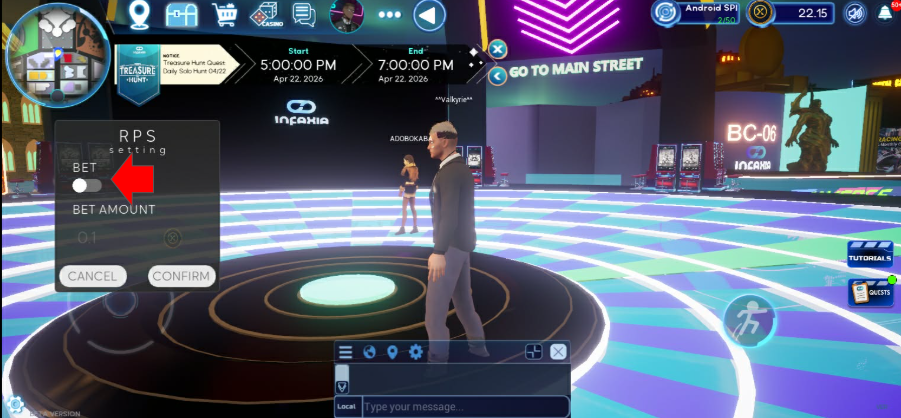
Get in the game and play your way!
04 ⚖️ Winning, Losing, and Draw Conditions
In INFAXIA RPS, each match consists of five rounds
where players select from five hand gestures to compete. The outcome
is determined by who wins the majority of rounds.
🏆 Winning Conditions
- ✔️ You win 3 out of 5 rounds before your opponent.
- ✔️ Your opponent fails to win at least 3 rounds after all 5 rounds are played.
❌ Losing Conditions
- ❌ Your opponent wins 3 out of 5 rounds first.
- ❌ You fail to win at least 3 rounds by the end of all 5 rounds.
⚖️ Draw Conditions
- ➖ Both players win exactly 2 rounds each, and 1 round results in a draw.
- ➖ All 5 rounds result in draws, meaning neither player secures 3 wins.
- ➖ If no player reaches 3 wins, the match is declared a draw with no winner.
🚨 Special Rules: If a player fails to select a
hand gesture before the time expires, the system randomly assigns
a move and the round proceeds.
Tiebreaker (Tournament Mode only): if a match ends
in a draw, extra rounds may be played based on the tournament format.
💥 Prepare your strategy and aim for victory in INFAXIA RPS! ✊🖐✌
05 🏟️ How to Enter and Play in the RPS Tournament Arena
🎮 Ready to test your reflexes and strategy? Here’s how to join the
exciting RPS Tournament and compete for glory and
rewards inside the INFAXIA Metaverse! ✊✋✌️
New to INFAXIA? You can create an account by Email
or with MetaMask — watch the video tutorials below.
▶
▶ Create an account with Email
▶
▶ Create an account with MetaMask
1
Head to the INFAXIA Metaverse and log into your account.
https://go.infaxia.io/
2
Wait for the Preliminary Round to start. A notification appears
once the round is about to start — click
“Click here to Join”.
3
Or click the “Warp Icon” and select
“RPS Tournament” from the warp menu.
4
You’ll be warped to the tournament arena. Click
“Yes” to agree to the Terms of Service,
then click “Join”.
5
Click “OK” to officially join the tournament.
6
Click “Find Match.”
7
The system automatically pairs you with another user.
8
Choose your winning hand gesture — Rock, Paper, or Scissors.
9
Click “Confirm” to lock your moves.
10
Start your RPS game. Win at least three rounds to secure
victory! Play and win to increase your ranking!
11
Share your victory on social media to celebrate your achievement.
If the game ends in a draw, you are allowed to play the same opponent
again.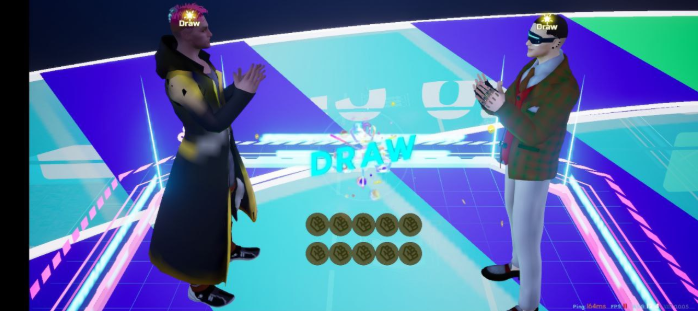
If matchmaking takes too long, switch to a different space. Each
virtual space hosts up to 50 players, so participants may be spread
across spaces — click the space icon at the upper-right of your game
screen to find new challengers.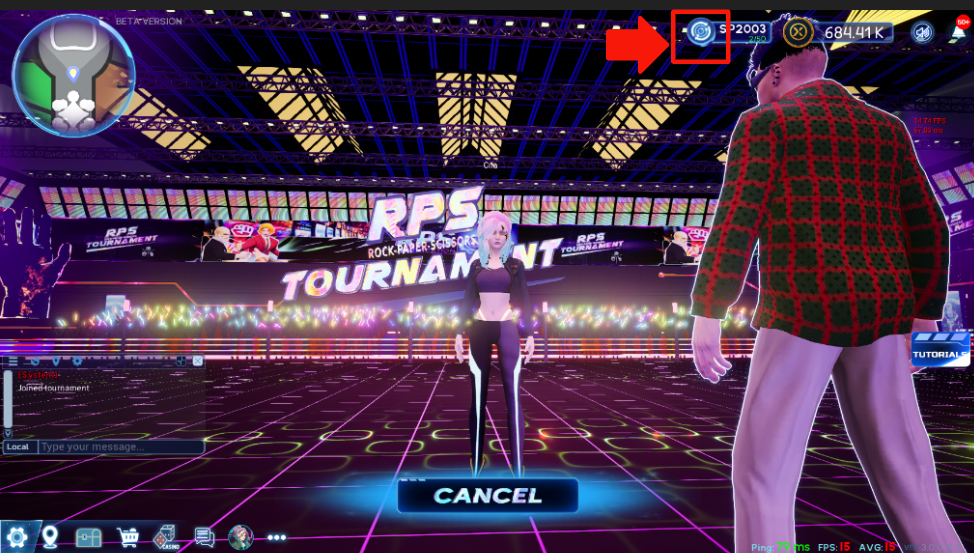
12
After the Preliminary Round ends, players are automatically
warped to the start position to await the Final Round schedule.
If you did not qualify for the final round, you may still enter the
arena — but you can only spectate the games.
Join now — your road to RPS glory starts here! 🏆
06 📊 RPS Leaderboard Ranking Rules
The Automatic Leaderboard updates in real time and
ranks players based on their overall match performance — giving you
instant feedback on your journey to the top. Every win, draw, and
loss directly affects your standing. This guide explains how the
ranking system works, what influences your position, and how ties
are resolved.
🔹 How the Ranking System Works
The leaderboard automatically sorts all players by
five ranking criteria, in order of importance. If
two or more players have the same record, the system compares the
next rule in the list until a higher rank is determined.
1
Total Wins (Highest Priority) — Players
with more total wins rank higher.
💡 Tip: Example: Player A (12 wins) ranks higher
than Player B (10 wins).
2
Total Draws — If wins are equal, the player
with more draws ranks higher.
💡 Tip: Example: Player A (10 wins, 3 draws)
ranks higher than Player B (10 wins, 1 draw).
3
Total Losses — If wins and draws are equal,
players with fewer losses rank higher.
💡 Tip: Example: Player A (2 losses) ranks higher
than Player B (4 losses).
4
First Played (Time-Based) — If W/D/L are
identical, the player who started earlier ranks higher.
💡 Tip: Example: Player A started at 10:00 AM,
Player B at 10:05 AM → Player A ranks higher.
5
User ID (Final Tiebreaker) — If all the
above are the same, the player with the smaller (older) User
ID ranks higher.
💡 Tip: Example: User ID 1020 ranks higher than
User ID 1025.
💡 Ranking order: 1️⃣ Total Wins (desc) → 2️⃣ Total
Draws (desc) → 3️⃣ Total Losses (asc) → 4️⃣ First Played (asc) →
5️⃣ User ID (asc). Each step is checked one by one until a clear
ranking is determined.
📊 Important Notes: The leaderboard updates automatically
after every completed match; rankings may change in real time as
new results are recorded; the system ensures a fair and transparent
process for all users.
Play fair. Play smart. Watch your performance shine on the INFAXIA
Leaderboard — where every move counts.
♠️ 🏎️ 💎 ✊
INFAXIA Games · INFAXIA · See you in the Metaverse!
INFAXIA Games · INFAXIA · See you in the Metaverse!